
DungeonMart’s starter data set is designed for SQL Server, so it’s time to leave DocumentDB behind and start the SQL work. First, I need to create the SQL database and load the seed data. The schema files that I’m using for the initial load can be found here: https://github.com/qanwi1970/dnd-srd-35/tree/master/V1. If you want to follow along, just run them against a new database and you’re good to go.
Since I already have a database, I’m going to use Entity Framework’s database first model to get talking to it quickly. I know from playing with this database already that it’s not even close to the linked, relational type data that I want. In fact, it’s so far from that database that I’m only hooking up to it in order to get the data in place so I can start a new database from scratch. In order to isolate this first database, I created a new folder in the data project and called it OldSql. Then I set about creating the database first model.
The first step is to right click on the folder where the context will live, which is OldSql in my case, and select Add New. Choose ADO.NET Entity Data Model and give it a name, like OriginalSrd.
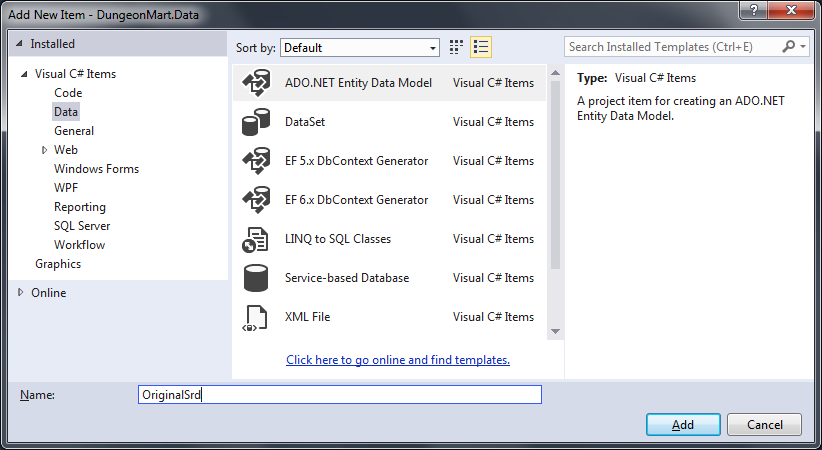
After you click Add, the next step is to choose EF Designer from database.

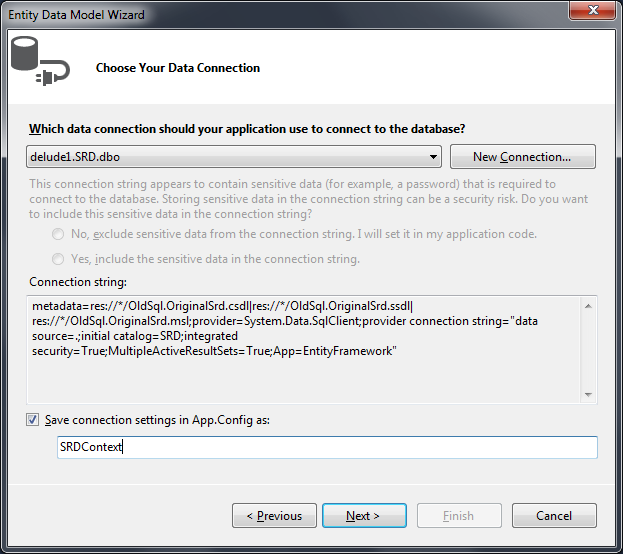
After you click Next, you’ll need to choose the connection. Click New Connection and connect to the database you ran the scripts against. It should have the tables, with data. I prefer to change the connection setting name (on the bottom) to something-Context. That will make more sense when we do the code first method later.
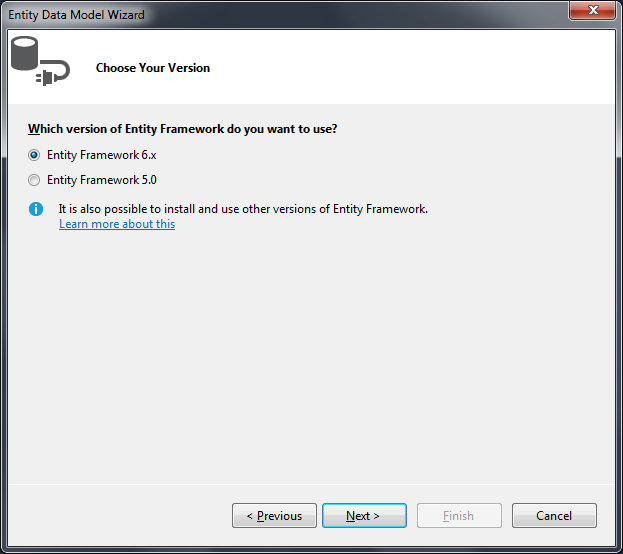
Next, you’ll need to choose the version of Entity Framework you want to work with. Choose Entity Framework 6.x (for now).
We’re almost done. Next, you’ll need to select the tables to include in the model. This part is easy, just choose them all.

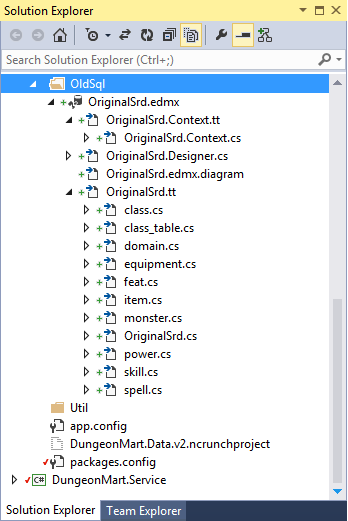
After you click finish, it will generate Entity Framework files and a bunch of models (one for each table). If you expand your OriginalSrd.edmx, it should look a lot like this.
And that’s it, really. Once this is done, you can start accessing the database using the SRDContext class. Or you can wire up to it quickly with a Web API controller and let Visual Studio do all the plumbing for you. I did that with the equipment table already, which you can see here: https://github.com/qanwi1970/dungeon-mart/tree/133a3726ef0c9a684c011ad14f9353042c78d38a.
 Bill DeLude